
Full answer
How Do I Use Chapter Text Controls?
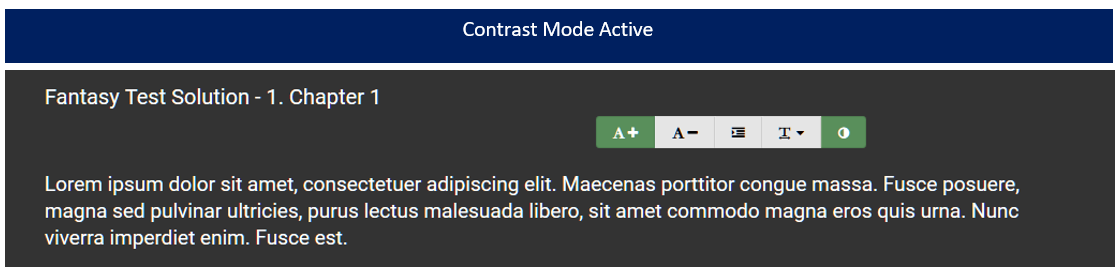
One of the most important aspects to our Stories software is allowing members to make the reading window fit their need for reading. Whether that is to adjust the text size, the contrast, the indents or the width of the text window. Here are the controls:

Text size should be obvious here. The green highlight, as shown here, means that the current text is larger than the default text. If you have no highlight, then you have default text size. If you have A- highlighted, then your text size is set smaller than default. Press A+ to adjust text size bigger until it fits what you want. Use A- to make text smaller.

Text Window Width is whether the entire window is filled or not. This is mostly used on the desktop with a wide screen. There is no need on smaller screens.

Contrast Mode shows a dark background. This helps to save battery and your eyes on mobile devices.
Settings are stored on your device so you just need to set it once and it'll remember.
Important note: Firefox Mobile has a bug as part of it's Auto Text Size setting that breaks the site controls. You must go to Settings -> Accessibility -> Automatic Text Sizing and turn it off if the site text size only grows and will not shrink.
Recommended Comments
There are no comments to display.
Create an account or sign in to comment
You need to be a member in order to leave a comment
Create an account
Sign up for a new account in our community. It's easy!
Register a new accountSign in
Already have an account? Sign in here.
Sign In Now